

Using Unreal Engine to create architectural visualizations is widely popular, and Unreal Engine’s Datasmith aims to streamline the SketchUp to Unreal Engine import workflow. However, to create seamless visualizations with high FPS, particularly for applications such as VR walkthroughs, Datasmith users have to create blueprints (Unreal Engine’s visual coding) to optimize and clean up their SketchUp files.
By incorporating an automatic 3D optimization software like Meshmatic into your SketchUp to Unreal Engine workflow, you can speed up your pipeline and ensure your SketchUp model is optimized for AR, VR, WebGL, or other visualization applications.
This post will cover how to use Datasmith to import SketchUp to Unreal Engine, and how our automated solution, Meshmatic is the faster way to go.
Using Unreal Engine’s Datasmith
Unreal Engine’s Datasmith Exporter Plugin for SketchUp allows users to convert an entire SKP model into a Uasset mesh file, which can then be imported into Unreal Engine. However, converting a SketchUp file into Uasset is only the first step of many for getting your model ready for real-time visualization.
While Datasmith facilitates importing native SketchUp to Unreal Engine, users still need to do a lot of manual work to get their SKP model ready for real-time, including creating blueprints, correcting mesh errors, and optimizing their scene for real-time performance.
Generating LODs and Lightmaps in Unreal Engine
Unreal Engine’s LOD generator is a great tool to use. However, you have to make sure that your input model is clean, otherwise you get bad LOD results. This means ensuring your model has an optimized face and vertex count, no detached faces, and no inverted normals.
Unreal Engine also generates lightmap UV’s which are high resolution UV’s to give your project high resolution shadows. Same as LOD’s, your model has to be clean and optimized to get nice lightmaps.
Improving FPS manually or with Blueprints
The most important factor to consider when creating real-time visualizations, especially for AR or VR projects, is maintaining a high FPS. FPS is inversely proportional to the number of meshes (or actors) in your scene, multiplied by the number of textures for each mesh. Therefore, the lower the mesh count in your scene, the higher your FPS will be. Ideally, you want to keep your FPS around 60-120 for real-time projects.
It is common to see a very low FPS after importing a Uasset file into Unreal Engine. For example, in the image below, the mesh count is at 32,000, which is quite high, causing a low FPS of 4. This project will not be able to render for either AR or VR.

Image 1: SketchUp file inside Unreal Engine imported with Datasmith, shows FPS of 13.

Image 2: Tree branches and leaves are separated into many meshes inside Unreal Engine.
The solution is to reduce the mesh count in the scene by combining back these separated meshes. This means manually cleaning and optimizing the model inside Unreal Engine. Other mesh reduction techniques such as instancing duplicate meshes can also help increase the FPS. Blueprinting is one way to automate some of these manual tasks.
Optimizing and Cleaning your model with blueprints
After importing a Uasset file into Unreal Engine, Blueprinting or coding may be necessary for generating LOD’s, combining meshes, instantiating duplicates, fixing inverted faces, bad normals, and detached faces. For many users, this step can be challenging and time consuming, especially if you’re not familiar with Blueprinting.

Image 3: Using blueprints to optimize model inside Unreal Engine
Thankfully, there is more streamlined way to import SketchUp to Unreal Engine. No blueprinting necessary!
Easily import SketchUp to Unreal Engine with Meshmatic
Meshmatic is a desktop software that automates SKP to FBX conversion and saves you time by optimizing your model for best performance for AR, VR, WebGL, and others. It does all these with just a few clicks, so you get on with your project in no time.
Best of all, Meshmatic is super easy to use. You don’t need any 3D or programming experience to get started.


Here is how Meshmatic will speed up your pipeline:
Automatic Instancing of duplicate assets
Meshmatic automatically finds assets that are geometrically identical (vertices, triangles, and faces) throughout your scene and creates instances of them. Instances of duplicate assets significantly decrease the complexity of your file, improving your FPS. Additionally, having instances of duplicates makes editing your model easier.
Face clean up
Errors in your mesh such as overlapping faces and edges, detached faces, and inverted faces greatly increase file size and complexity, and slow down your FPS. Finding and correcting these errors in your mesh is a manual and time-consuming process. Meshmatic saves you time by automatically detecting and correcting them in your scene.
Detecting and combining meshes
As we discussed, combining separated meshes reduces mesh count and improves FPS. Meshmatic can detect and combine meshes that were originally part of the same SketchUp component using smart algorithms.
Take the tree example we mentioned earlier. Meshmatic finds the separated leaves and combines them into a single mesh. It will continue to merge other meshes in the scene such as parts of a chair that have been broken down into different meshes. This significantly improves render speed and FPS. The image below shows the plant combined back into a single mesh inside Unreal Engine.
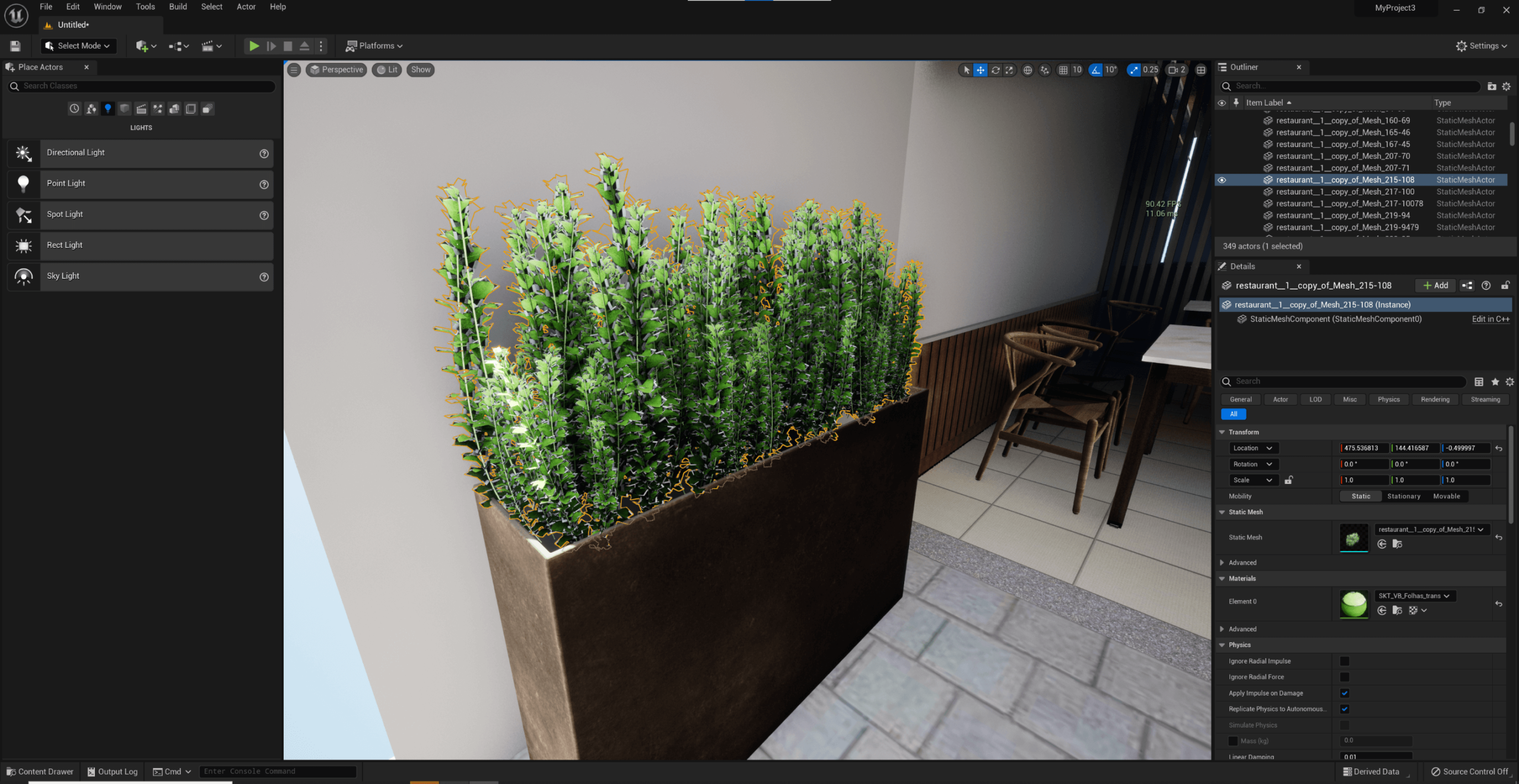
Image 4: Combined meshes in Unreal Engine after using Meshmatic
How to get started with Meshmatic?
Now that you’ve learned about all the time saving benefits of Meshmatic, you probably want to give it a try for yourself. The good news is that you can now get a free 7-day trial of Meshmatic and get optimizing in no time. Simply follow these steps:
- Download and install Meshmatic trial onto your PC
- Import your native SketchUp file into Meshmatic
- Select the “Game Engine” optimization profile, Meshmatic will take care of the rest
- Import your optimized file into Unreal Engine
If you have any feedback, feel free to leave it below!
Download a 7-day Meshmatic trial here.

Hi I have a +-750MB SKU file a building 100 x 100 meters. 2 floors up five floors down underground. I am learning UE 5.03 but it is insane.
Will the size of my model be a problem or not?
It renders perfectly in Lumion10. I am a hobbyist Designer 55+ with a Design career in the past.
I am trying to get this building into VR mode as I bought a headset already.
IG
https://www.instagram.com/p/CorM2dduu8K/?igshid=YmMyMTA2M2Y=
https://www.instagram.com/p/Coc3GFev7DP/?igshid=YmMyMTA2M2Y=